


Storyla AI: Photo to Video
0.00.00 Reviews
App Specs
- Version
- 1.0.2
- Updated On
- License
- Free
- Downloads
- 10,000+
- Developer
- ayselmvaysin
- Categories
- Art & Design
- Platform
- Android
Screenshots
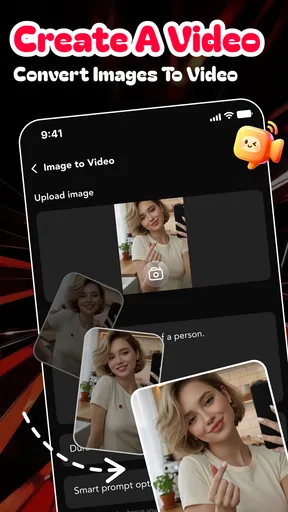
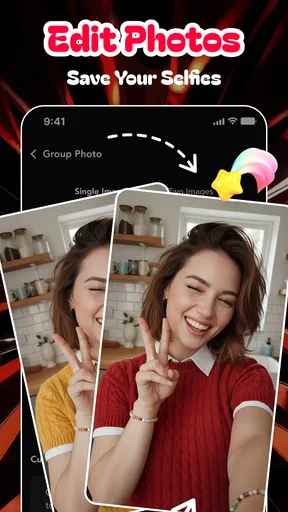
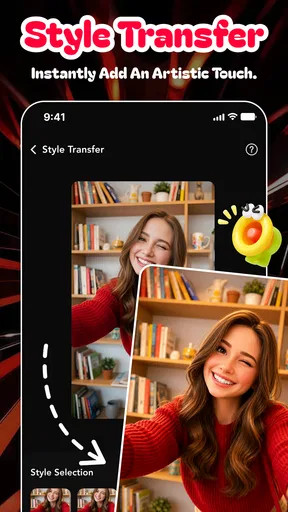
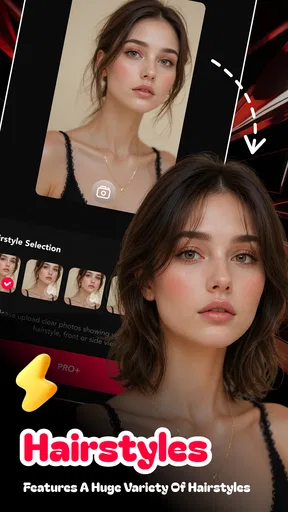
 Analysis by AppCompare
Turning a still image into something that feels alive is usually harder than it looks. Traditional editing apps give me plenty of control, but they also ask me to understand timelines, keyframes, transitions, and export settings. Storyla AI: Photo to Video takes a much simpler route: I start with a photo, choose a creative direction, and let its AI-based workflow build a short visual result around that image. My overall impression is that it is best understood as a quick idea generator rather than a full replacement for a serious video editor.
That distinction matters. The app sits in the Art & Design category, and its appeal is immediate for anyone who wants to make a moving post, a visual greeting, a mood piece, or a more expressive version of an ordinary photograph without spending a long time learning editing software. It is free to install, although optional in-app purchases range from $1.99 to $99.99 per item. The app is marked Mature 17+, so it is not something I would casually hand to a child simply because the basic download costs nothing.
After using it, I think the strongest case for Storyla AI is speed. It reduces the distance between “I have a picture” and “I have a shareable animated clip.” The trade-off is that AI creativity can be unpredictable, and people who need exact movement, precise timing, or dependable professional output may quickly feel restricted. For casual creators, however, that compromise can be worthwhile.
What the photo-to-video workflow feels like in practice
The central experience is deliberately approachable. Instead of building a video from a blank timeline, I treat one of my photos as the starting point and use the available creative treatment to suggest motion, atmosphere, or a visual transformation. This makes the app particularly comfortable for users who think in images rather than editing tracks. A portrait, travel photo, product shot, or family memory can become the basis for a short piece without requiring a collection of separate clips.
That simplicity also changes how I approach the creative process. In a conventional editor, I often spend more time arranging material than deciding what I want to say. Here, the image does most of the storytelling work at the beginning. I can focus on the mood I want: something playful, dramatic, dreamy, or suitable for a social post. The result is not necessarily a finished production in the professional sense, but it can be a useful first version that gives me a direction.
The templates are important because they prevent the experience from becoming a purely technical exercise. A blank canvas can be intimidating, especially when I only want a quick result. A template offers a visual starting point and helps me understand how the still image might be presented. I find this more useful when I choose a photo that already has a clear subject and enough visual space around it. A crowded image leaves less room for an effect to look intentional.
The animation side is most convincing when I keep my expectations realistic. AI-generated movement can make a static composition feel more dynamic, but it does not give me the same control as manually animating a layer. If I need a person, object, or logo to move along an exact path, I would rather use a timeline-based editor. Storyla AI is more interesting when I want to explore a visual possibility quickly than when I already know every frame I need.
Worth Reading Before You Choose

Flipboard Shows What News Apps Must Do Beyond the Feed

Switching to Android Auto Means Rethinking Your Driving Routine

Google Calendar Makes a Crowded Week Easier to Manage

Ludo King Makes the Most of the Minutes Between Plans

Baby Panda World Brings Quick Play to Modern Phones, but Its Game Library Feels Busy

ESPN’s Live Game View Makes Following Close Games Easier
One practical habit improved my results: I prepare the source image before importing it. I crop away distracting edges, make sure the main subject is easy to identify, and avoid photos where the important details are hidden in deep shadows. This is not a glamorous tip, but it makes a major difference to any automated visual treatment. The app can only build from what the image communicates clearly.
Why the templates are more useful than they first appear
I initially viewed templates as decoration, but they work better as a decision-making tool. They help me compare different interpretations of the same photo. One treatment may emphasize motion, while another may make the image feel more like a greeting or a stylized design. Rather than repeatedly editing from scratch, I can use the template approach to test the emotional direction of a post before settling on one.
This is especially useful for small businesses and independent creators who need several visual variations from one carefully prepared image. A café could adapt a food photograph into a short announcement, a handmade seller could turn a product image into a more eye-catching presentation, and an artist could use a finished illustration as the foundation for a moving teaser. The value is not that every result will be perfect; it is that the app lowers the cost of trying several concepts.
There is also a subtle advantage for people who are not confident designers. Templates provide boundaries. They reduce the temptation to add every effect available and make it easier to judge whether the photo remains the focus. I still need to make choices, but I am not forced to invent the entire visual language myself. That makes the app friendlier than many conventional design tools for a quick, one-off project.
Where AI creativity helps, and where it becomes a compromise
The most enjoyable moments come when the app adds energy to an image that would otherwise remain unused in my camera roll. A simple photograph can gain a sense of occasion, which is useful for sharing memories or creating a short visual message. I also like the possibility of using the same source image for different moods instead of treating the first result as final.
At the same time, I do not treat the AI output as an authority. Automated effects can interpret the subject in a way that does not match my intention. A subtle image may receive more drama than I wanted, while a carefully composed portrait may benefit from a restrained treatment rather than an aggressive one. My best workflow is to generate, inspect, and then decide whether the effect supports the image. If it does not, I change direction rather than trying to rescue a weak result with more decoration.
This is one of the app’s most meaningful trade-offs. Storyla AI can provide creative momentum, but it cannot replace judgment. The person using it still needs to recognize when movement feels natural, when a template overwhelms the subject, and when a still image is already stronger without animation. The app makes experimentation easier; it does not make taste unnecessary.
A realistic everyday use case
Imagine I have taken a photo of a friend’s birthday cake and want to send a more memorable message in a group chat. I could open a traditional video editor, add the image, choose a duration, find a transition, add text, and adjust the timing. That process is perfectly possible, but it may be excessive for a message that I want to finish in a few minutes. With Storyla AI, I can begin with the cake photo, try a suitable template or effect, and use the animated result as a quick greeting.
The same workflow makes sense for a weekend trip. Instead of assembling a complete travel montage from many clips, I might choose one strong landscape photo and turn it into a small visual postcard. For a personal project, that can be enough. It gives the image a little movement and makes it feel more deliberate than simply attaching the original photograph.
There is a useful limitation hidden in this scenario: one photo usually communicates one main idea. If I want to tell a larger story about the whole trip, several people, or a sequence of events, a slideshow or conventional editor is the better tool. Storyla AI is strongest when the source image already has a clear message and I want to amplify it rather than build a narrative from multiple scenes.
How it compares with familiar alternatives
Compared with a standard mobile video editor, Storyla AI feels faster and less demanding at the beginning. Conventional editors win when I need exact control over clip order, audio timing, text placement, or manual motion. They are also better for projects that must be revised repeatedly, because a timeline exposes the structure of the work. Storyla AI wins when I want an attractive starting point without managing all those individual decisions.
Compared with a basic slideshow maker, the app has a more imaginative angle. A slideshow mainly presents images in sequence, while this app is designed around giving a single photo a more animated or stylized treatment. That makes it a better fit for a standout visual, but not necessarily for an album or a long presentation.
Compared with a full design suite, it is less intimidating but also less comprehensive. A design suite is preferable when I need brand consistency, detailed typography, layered composition, or repeatable templates that I control myself. Storyla AI is more appealing for quick experiments and personal posts, especially when I do not want to spend time learning a large toolset.
My advice is to choose based on the kind of control you need. If your priority is speed and visual surprise, this app has a clear purpose. If your priority is precision, repeatability, or a carefully edited production, another category of tool will serve you better.
The friction points I would consider before installing
The first limitation is the uncertainty that comes with AI-assisted results. I can guide the general direction, but I should not expect every attempt to match a precise mental picture. That can be exciting for experimentation and frustrating for a deadline. If the output must follow a strict brand style or show a product accurately, I would test carefully before relying on it.
The second issue is the app’s purchase structure. The download is free, but the presence of individual purchases from $1.99 to $99.99 means I would pay attention to what is available without spending and what may require payment during the creative process. A free starting point is useful, but it does not automatically mean every desirable option is included at no cost. Anyone installing it for occasional use should decide in advance how much experimentation is worth paying for.
The Mature 17+ content rating is another point that families should take seriously. I would not assume that an art-focused app is automatically appropriate for younger users. Parents choosing creative tools for children should select an app whose age guidance matches the child, rather than relying only on the category or the simple photo-based concept.
There is also a creative limitation in relying heavily on templates. Templates can make a result look polished quickly, but they may also make several different projects feel visually similar. If I were building a recognizable identity for a business or creator account, I would use the app for concept sketches or occasional posts and then refine the strongest ideas elsewhere. That approach keeps the convenience without allowing the app’s visual choices to define everything I publish.
Who will get the most from Storyla AI
I would recommend it first to casual creators, social media users, and people who have a camera roll full of good photos but little patience for traditional editing. It is also a sensible option for someone who wants to explore AI-assisted design without beginning with a complicated professional application. The free entry point makes it easy to see whether the workflow suits you before committing to a larger tool.
Small sellers may find it useful for quick promotional experiments. A product photograph can be adapted into several visual directions, helping the seller decide what kind of post feels most engaging. I would still check every result closely, particularly if the product’s shape, color, or lettering needs to remain accurate. Creative movement is helpful; visual distortion is not.
It could also suit teachers, hobby artists, and community organizers who need a short visual announcement but do not want to produce a full video. A single illustration or event image can become more noticeable when given an animated presentation. The important condition is that the project should be short and focused. The more information I need to communicate, the less comfortable this photo-first workflow becomes.
I would skip it if my main goal were advanced editing, detailed motion design, a multi-scene story, or strict control over every visual element. I would also look elsewhere if I needed a dependable professional workflow with carefully repeatable results. In those situations, the convenience of AI does not compensate for the lack of direct control.
Practical advice before committing to a project
I suggest starting with a duplicate of the original photo rather than treating the app’s version as the only copy. Keep the clean image available so you can try a different treatment later or move the project into another editor. This is particularly important when experimenting with several styles, because the first result may be interesting even if it is not the final version you want to share.
Use images with one obvious focal point for the first test. A centered portrait, a clearly isolated object, or a landscape with a strong horizon gives you a better way to judge the app’s creative direction. Once you understand how the treatment affects your images, you can try busier compositions. Starting with a difficult photo makes it hard to tell whether the issue comes from the source material or the chosen effect.
I would also decide where the finished video is going before choosing a style. A private message, a social post, and a small promotional clip may need different levels of movement and visual emphasis. A treatment that looks fun in isolation can become distracting when placed beside text or used as part of a larger feed. The app encourages quick creation, but a few seconds of planning still improves the result.
Finally, I would review the purchase prompt before exploring deeply. Since optional items can reach a high price, I prefer knowing which choices are free and which are paid rather than making a decision in the excitement of a promising preview. This is not a criticism of experimentation itself; it is simply a way to keep a casual creative session within a budget.
My verdict after looking at the whole experience
Storyla AI: Photo to Video has a clear and appealing thesis: a single photograph can become a more expressive visual without forcing the user to learn a complete editing system. In my experience, that focus gives it more personality than a generic slideshow tool. The combination of AI treatments, templates, and animation makes it especially good for quick ideas, personal messages, and social content built around one strong image.
The app is developed by ayselmvaysin and currently sits at version 1.0.2, with over ten thousand installs. Those details suggest a relatively focused product rather than a huge all-purpose creative platform, and that matches how I would use it: as a compact tool for turning a photo into a visual experiment or a short shareable moment.
It supports Android 7.0 and later, which gives it a broad compatibility range for users with older devices. I would still judge the experience on the phone I plan to use, because AI-oriented creative work can feel different depending on the device and the complexity of the chosen treatment. The practical question is less whether it can replace every editor and more whether its quick workflow fits the way I create.
My recommendation is simple: choose Storyla AI when you want fast visual inspiration from one photo, not when you need a precise production studio. It is free to begin, easy to approach, and capable of making ordinary images feel more active. Its unpredictability, purchase structure, Mature 17+ rating, and limited suitability for complex projects deserve attention, but they do not erase its main strength. For the right user, it turns the first creative step into the easiest one.
Pros
- Turns still photos into engaging videos with minimal editing effort.
- AI effects can add motion and personality to otherwise static images.
- Useful for creating social media posts
- stories
- and short visual memories.
- Simple workflow makes it accessible to users without video-editing experience.
- Offers a quick way to experiment with creative photo animation styles.
Cons
- Results may vary depending on photo quality
- lighting
- and subject positioning.
- Some AI effects can look unnatural or produce distracting visual artifacts.
- Export options or premium effects may be limited without a subscription.
- Processing can take longer for high-resolution images or complex animations.
- Privacy concerns may matter when uploading personal photos to an AI service.
FAQs for Storyla AI: Photo to Video
What is Storyla AI: Photo to Video, and what can it do?
Storyla AI: Photo to Video is a creative app designed to turn still images into short animated videos. After importing a photo, you can apply AI-powered motion effects, transitions, music, text, and other visual elements to create content suitable for social media, stories, presentations, or personal memories. Its main appeal is simplifying video creation for users who do not have advanced editing experience.
Is Storyla AI: Photo to Video free to download and use?
The application may be available as a free download, but some features can be restricted behind in-app purchases or a subscription. Depending on the current version, premium tools may include additional AI effects, export options, templates, music, or removal of limitations such as watermarks. Before starting a trial, check the pricing page carefully and confirm whether the subscription renews automatically through your app store account.
How do I create a video from a photo in Storyla AI?
The usual workflow is straightforward: select an image from your device, choose an animation or AI effect, adjust the duration and visual settings, and then add optional music, text, or transitions. Once the preview looks correct, you can export the result as a video. Clear, well-lit images generally produce more attractive results, while heavily cropped or low-resolution photos may show less convincing movement.
Does Storyla AI require an internet connection or access to personal photos?
Storyla AI may need an internet connection for cloud-based AI processing, downloading templates, loading music, or completing certain exports. It will also request access to your photo library so you can choose images for editing, and possibly permission to save finished videos to your device. Review the permissions shown during installation and in your phone settings, especially if you prefer limiting access to selected photos rather than your entire library.
Are videos created with Storyla AI suitable for social media and commercial use?
Videos made with Storyla AI can generally be used for personal posts, stories, and short-form social content, provided you follow the app’s current terms and the rights associated with any included music, templates, images, or AI assets. Commercial use may have additional restrictions. If you plan to promote a business or monetize your videos, verify the licensing conditions and avoid using copyrighted material without permission.


